How to Detect a Dying Smartphone Battery (Early Warning Signs + Tools)
Worried your phone’s battery is on its last legs? Here’s how to spot the warning signs early and what tools you can use to check your battery’s health before it fails.
 Danijel MarkovAndroid app developer 5 min read
On this page
- 📝 Introduction
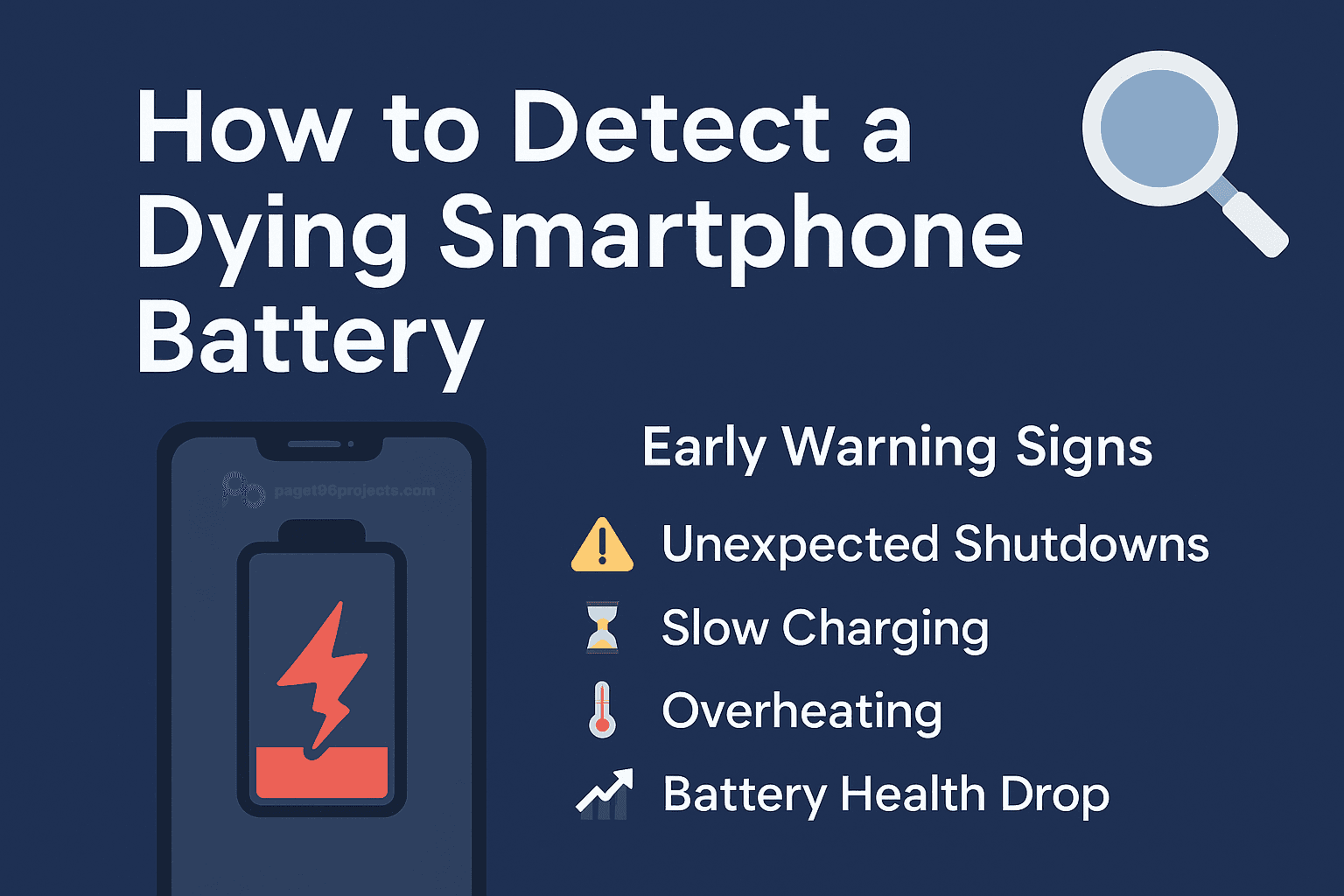
- 🚨 Top Warning Signs Your Battery Is Failing
- ⚡ 1. Shortened Battery Life
- 🔥 2. Unexpected Heating During Normal Use
- 🔋 3. Sudden Percentage Drops
- 💤 4. Slow Charging or Rapid Discharge
- ❌ 5. Random Shutdowns
- 🧱 6. Swelling or Warping
- 🛠️ Tools to Check Battery Health
- 📱 iPhone: Built-In Battery Health
- 🤖 Android: Manufacturer Tools + Apps
- 🛡️ Best Third-Party App Recommendation
- ✅ Battery Guru (Android)
- ✅ AccuBattery (Android)
- ✅ CoconutBattery (Mac for iPhone)
- ⚙️ When to Replace the Battery?
- 💡 Bonus Tip: Use Battery Guru to Track Long-Term Health
- 🏁 Conclusion
📝 Introduction#
Smartphone batteries have a limited lifespan, typically between 2 to 4 years depending on your charging habits, usage intensity, and environmental conditions.
But here’s the good news:
You don’t have to wait for your phone to suddenly shut down or refuse to charge before acting.
By learning the early warning signs of battery decline and using the right diagnostic tools, you can proactively manage your battery health and avoid unpleasant surprises.
🚨 Top Warning Signs Your Battery Is Failing#
⚡ 1. Shortened Battery Life#
One of the earliest and most obvious signs is that your phone just doesn’t last as long as it used to.
If you remember getting a full day’s use with no problem but now find yourself reaching for the charger by lunchtime, that’s a strong indicator that your battery’s maximum capacity has declined.
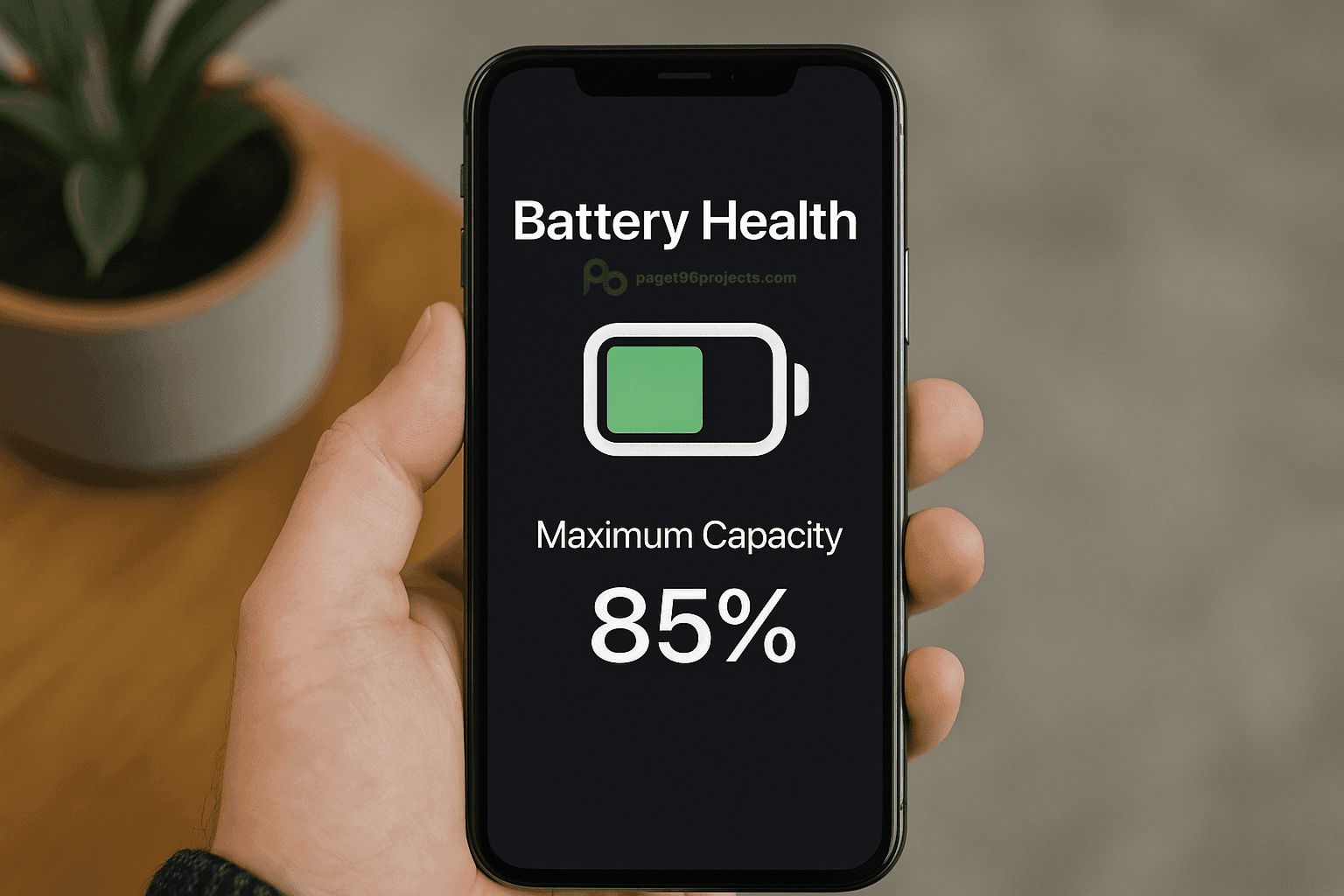
This usually happens when your battery drops below 80% of its original design capacity, meaning it can no longer hold as much charge as when it was new.
✅ Pro tip: Track how many hours you get between charges under your normal use. If you’re losing more than 25–30% of your expected runtime, it’s time to investigate.
🔥 2. Unexpected Heating During Normal Use#
While it’s normal for your phone to heat up during gaming, video calls, or heavy app use, heating up during light tasks (like texting or browsing) can signal that your battery is working inefficiently.
This happens because aged batteries have higher internal resistance, meaning they generate more heat when charging or discharging.
✅ Pro tip: If your phone feels warm even when idle, it’s worth checking the battery’s condition.
🔋 3. Sudden Percentage Drops#
Have you ever seen your phone drop from 40% to 10% within minutes, or even shut down suddenly with battery left?
That’s a sign of voltage instability a common issue in older batteries where the system can no longer accurately predict how much charge remains.
✅ Pro tip: Pay attention to whether sudden drops happen under load (like while gaming) or even during idle use. Both are red flags.
💤 4. Slow Charging or Rapid Discharge#
If your phone takes much longer to reach 100% or seems to drain almost as soon as you unplug it, your battery might be struggling to accept or hold a charge.
Over time, the battery’s internal chemistry degrades, reducing its ability to efficiently store energy.
✅ Pro tip: Compare your current charge times and standby drain against when the phone was new. Big differences are worth checking.
❌ 5. Random Shutdowns#
Does your phone power off even though it shows 15%, 20%, or even 30% battery?
That’s a classic sign of an old battery that can no longer handle low-voltage demands, especially under stress (like running multiple apps).
✅ Pro tip: If this happens repeatedly, it’s not just software your battery likely needs service or replacement.
🧱 6. Swelling or Warping#
This is the most urgent sign.
If you notice the back cover lifting, the phone feeling thicker, or the battery bulging, stop using the device immediately.
Swollen lithium batteries are not just old — they’re dangerous, with a risk of leaking or catching fire.
✅ Pro tip: Always seek professional replacement if you detect swelling, never attempt to puncture or press down on the battery.
🛠️ Tools to Check Battery Health#
Modern smartphones often hide detailed battery health data from users or limit access depending on region, model, or carrier.
But with the right tools, you can uncover a lot.
📱 iPhone: Built-In Battery Health#
Apple provides a straightforward way to check battery health (on iPhone 6 and newer):
- Go to Settings → Battery → Battery Health & Charging
You’ll see:
- Maximum Capacity → shows battery health as a percentage of original capacity
- Peak Performance Capability → tells if your phone can still handle high-performance tasks
- Important Messages → alerts if your battery needs service
✅ Pro tip: If maximum capacity drops below 80%, iOS may reduce peak performance to prevent sudden shutdowns, time to consider a battery replacement.
🤖 Android: Manufacturer Tools + Apps#
Unlike iPhones, Android devices vary a lot:
- Some brands include basic battery checks
- Others hide detailed health info entirely
Here’s what’s typically available:
- Samsung → Samsung Members app → Device Diagnostics → Battery (but not available on all models or regions)
- Google Pixel → Newer models may show health in Settings (Beta/Android 14+), but older users rely on ADB or third-party apps
- OnePlus → Side-loaded OnePlus Diagnostic app (may require specific firmware)
- Xiaomi/Redmi → Engineering/test menus (hidden, sometimes blocked by MIUI versions)
✅ Pro tip: Built-in tools often give only surface-level data, for in-depth analysis, third-party apps are your best bet.
🛡️ Best Third-Party App Recommendation#
✅ Battery Guru (Android)#
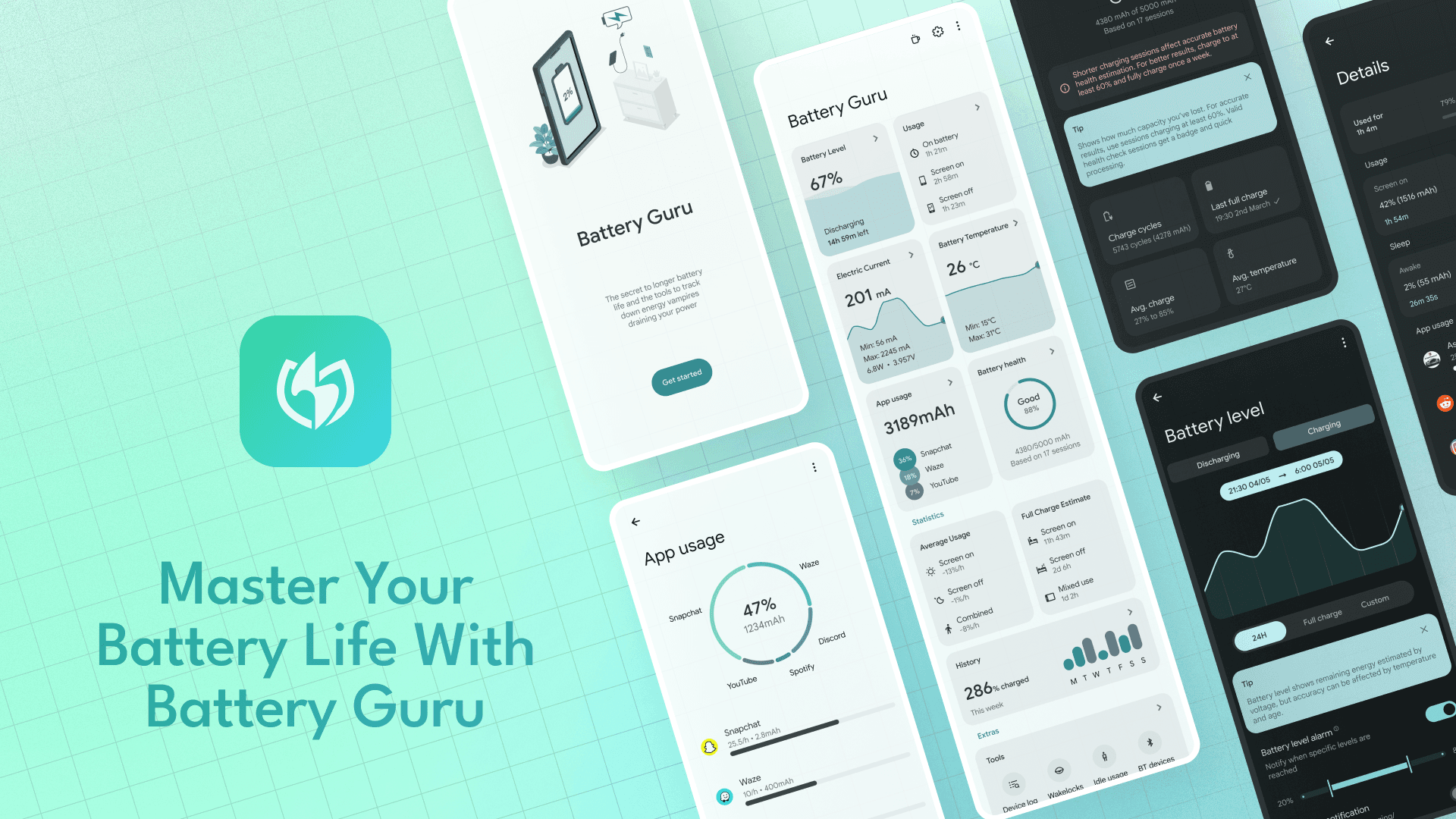
Battery Guru offers detailed insights:
- Estimates battery cycle count
- Tracks real-time charging and discharging
- Monitors temperature trends over time
- Helps you build healthier charging habits
It’s designed for everyday users and enthusiasts alike, giving you everything you need to track your battery’s health and longevity.
✅ AccuBattery (Android)#
A popular alternative that shows capacity estimates and charging sessions, but without as much long-term tracking.
✅ CoconutBattery (Mac for iPhone)#
Connect your iPhone to your Mac to see detailed battery health stats and aging data.
⚙️ When to Replace the Battery?#
Most smartphone batteries last around 500 full charge cycles roughly 1.5–2.5 years for average users.
Signs it’s time to replace:
- Maximum capacity drops below 80%\
- Frequent random shutdowns or reboots
- Significant swelling or deformation
- Heat during basic use
✅ Pro tip: For sealed devices, use authorized service centers for safety and warranty protection.
💡 Bonus Tip: Use Battery Guru to Track Long-Term Health#
Battery Guru isn’t just a snapshot, it’s a long-term monitoring tool that helps you:
- Understand your daily charging habits
- Track charging temperatures and voltages
- Estimate how many cycles your battery has already gone through
- Set reminders or alarms to avoid overcharging
✅ Pro tip: By using it regularly, you can better understand your battery’s condition, spot early warning signs, and adjust your usage to promote healthier battery habits.
🏁 Conclusion#
Your battery’s health determines your phone’s reliability.
By learning the early signs, using diagnostic tools, and acting before it’s too late, you can save money, avoid frustration, and keep your phone running smoothly.
Don’t wait for disaster. check your battery health today!