Google Addresses Pixel Battery Drain: Understanding the Cause and How to Fix It
Reports have surfaced regarding unexpected battery drain on Google Pixel phones. Google has acknowledged these concerns and provided insights into the potential causes, along with actionable steps users can take to mitigate the issue. This article summarizes the problem and outlines the recommended fixes.
 Nissi VardhanContent writer 3 min read
Recently, some Google Pixel users have experienced faster-than-usual battery depletion, causing frustration. Google has addressed these reports, shedding light on why this might be happening and offering solutions to help users regain optimal battery performance.
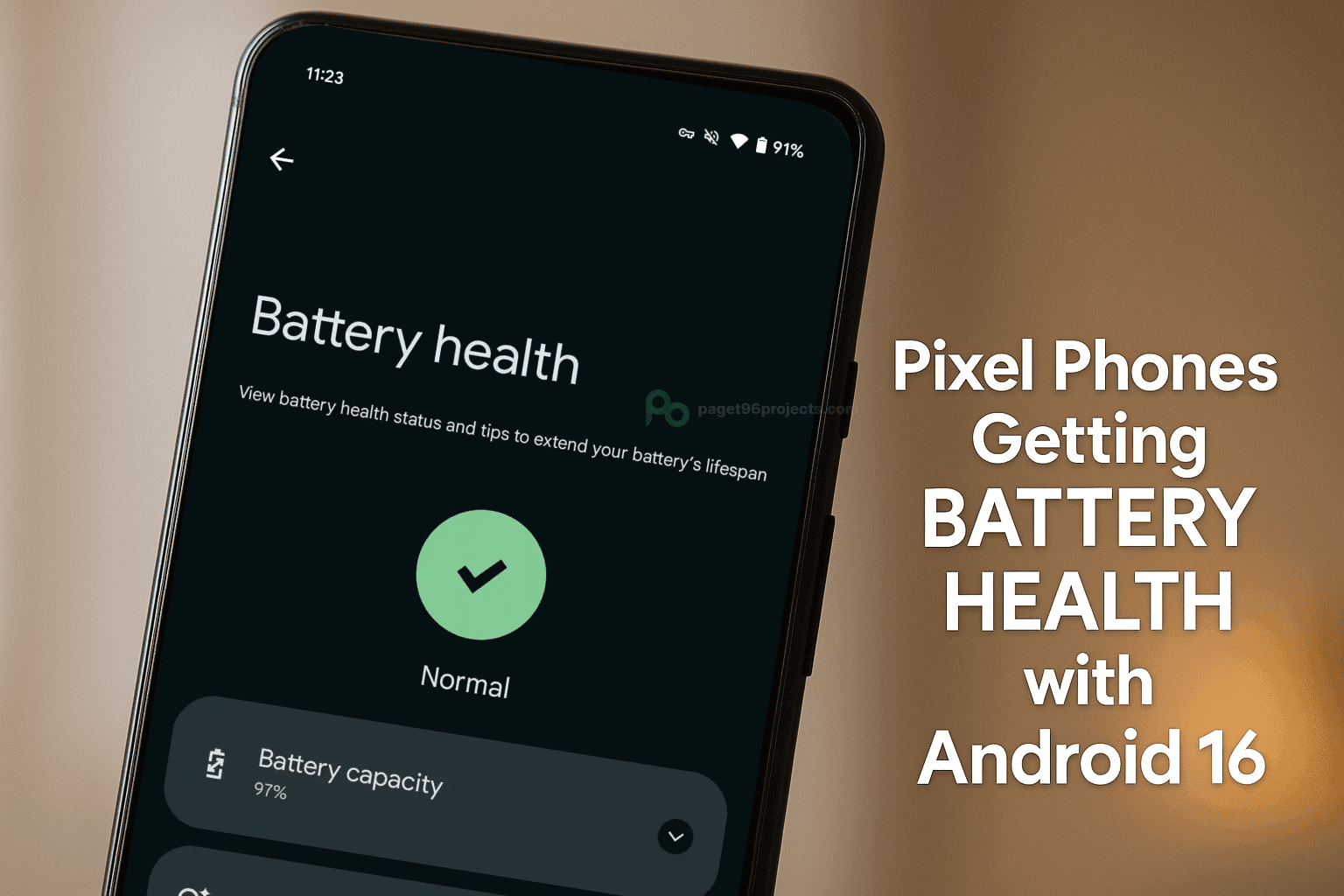
Following Google's early May update for Pixel phones, many users, from Pixel 6 to the latest models, have reported significantly faster battery drain and some overheating. While a known Instagram bug contributed to this, with Google recommending an update, issues persist for others, suggesting the update itself has impacted battery life. A fix might arrive in a future Play Services or June firmware update.
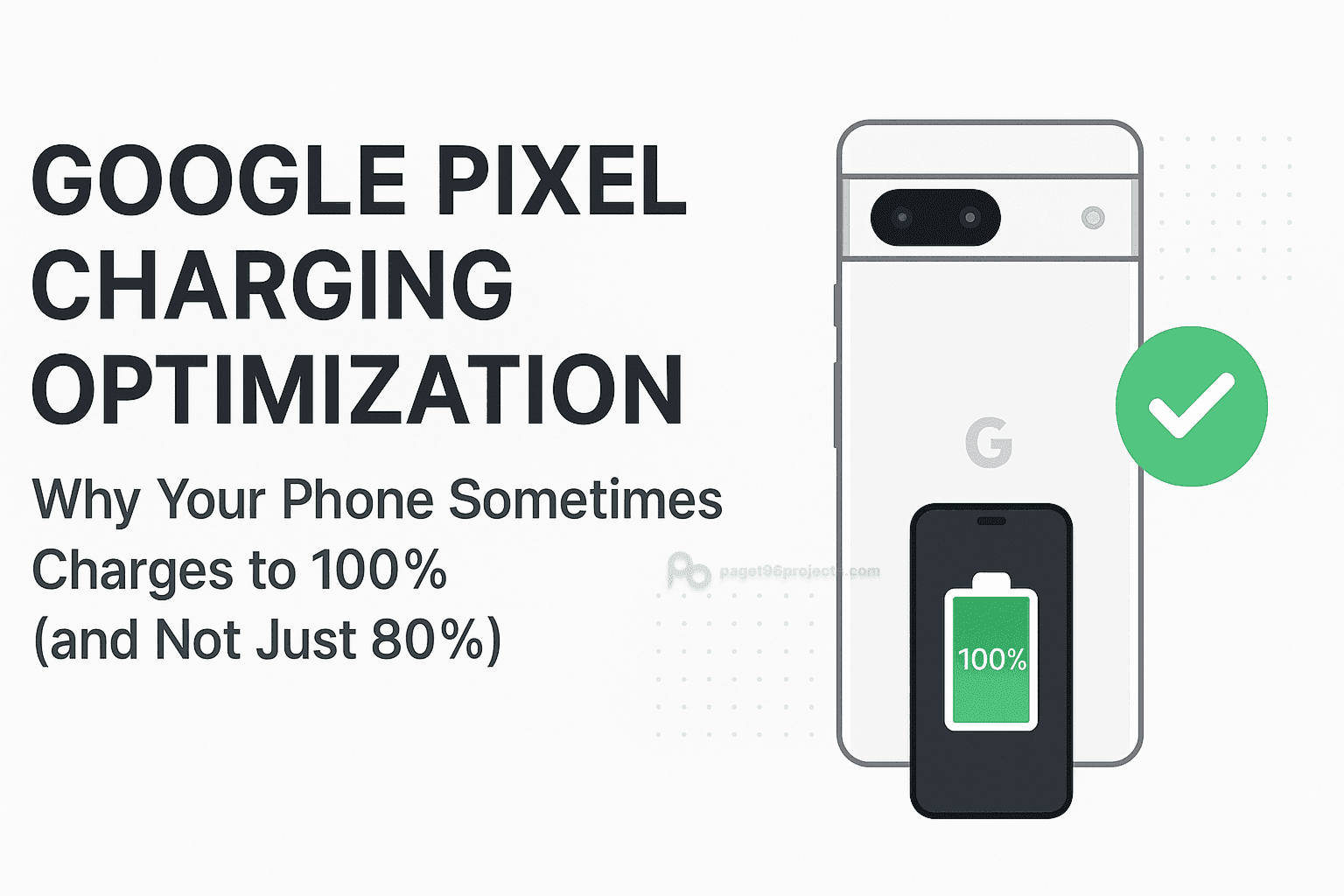
According to Google, a common reason for increased battery drain, especially after a software update, is the optimization process. When a new operating system version or even app updates are installed, the phone works intensely in the background to integrate these changes. This period of heavy activity can lead to a temporary increase in battery consumption. Google suggests allowing a few days for this optimization to complete, after which battery performance should return to normal.
However, if the unusual battery drain persists beyond a few days, there could be other underlying causes. Google recommends several steps to diagnose and resolve these issues:
1. Identify Battery-Draining Apps: Navigate to Settings > Battery > Battery usage. This section provides a breakdown of which apps are consuming the most battery. If you notice an app using an unexpectedly high percentage, you can try the following:
- Force Stop the App: Go to Settings > Apps > [The Problematic App] > Force stop.
- Restrict Background Usage: For the same app, look for Battery settings and restrict background activity. Be aware that this might delay notifications from the app.
- Uninstall the App: If the app is not essential, consider uninstalling it to see if the battery drain improves.
2. Keep Your Phone Updated: Ensure your Pixel phone is running the latest Android version and that all your apps are up to date from the Google Play Store. Updates often include performance improvements and bug fixes that can impact battery life. You can check for updates in Settings > System > Software update and in the Google Play Store under "Manage apps & devices."
3. Restart Your Phone: A simple restart can often resolve temporary software glitches that might be contributing to battery drain. For most Pixel phones, you can do this by pressing and holding the power button, then tapping "Restart."
4. Utilize Battery-Saving Features: Google Pixel phones offer built-in tools to extend battery life:
- Adaptive Battery: This feature learns your usage patterns and restricts battery usage for less frequently used apps. It's generally recommended to keep this turned on (Settings > Battery > Adaptive Battery).
- Battery Saver: When your battery is low, you can manually turn on Battery Saver to limit background activity, visual effects, and other features to conserve power (Settings > Battery > Battery Saver).
While the initial battery drain after an update is often temporary, following these steps can help identify and resolve persistent issues, ensuring you get the most out of your Google Pixel's battery.