Understanding Android Wakelocks and How to Hunt Them Down Using Battery Guru
With Google's renewed focus on optimizing battery life on Android devices, many users are wondering: what exactly are wakelocks, and how do they affect my phone’s battery life? Let’s dive into what wakelocks are, how you can find out which apps are misbehaving, and how Battery Guru (Community Version) helps you uncover and manage them—even on devices with tighter restrictions like Xiaomi’s.


On this page
🔋 What Are Wakelocks?#
A wakelock is a mechanism in Android that allows apps to keep the CPU (and sometimes the screen) awake, even when the device should ideally be asleep. While this can be helpful—like when streaming music or downloading files—it often becomes a drain on your battery if abused.
There are two main types:#
Partial wakelocks: Keeps the CPU running but allows the screen to turn off.
Full wakelocks: Keeps both CPU and screen on.
Google provides an official explanation, but in essence, wakelocks are powerful tools that, when misused, can destroy your standby battery life.
🧭 Hunting Down Wakelocks: Why It's Tricky#
Finding out which app is holding a wakelock isn't straightforward. Android doesn’t show this by default, and recent Android versions have limited access to battery stats. That’s where third-party tools like Battery Guru Community Version come in.
🔍 Using Battery Guru to Detect Wakelocks (Step-by-Step)#
Battery Guru’s Community Version includes a special card just for Wakelocks. Here's how you can use it effectively:
Step 1: Open Battery Guru (Community Version)
💡 Make sure you're using the Community version, as this feature is exclusive to it.
Step 2: Navigate to the Wakelocks Card
From the main screen, scroll until you find the Wakelocks card. Tap on it.
Step 3: The Permissions Dialog
Here’s the crucial part:
When you tap the Wakelocks card for the first time, you’ll see a dialog that mentions permissions.
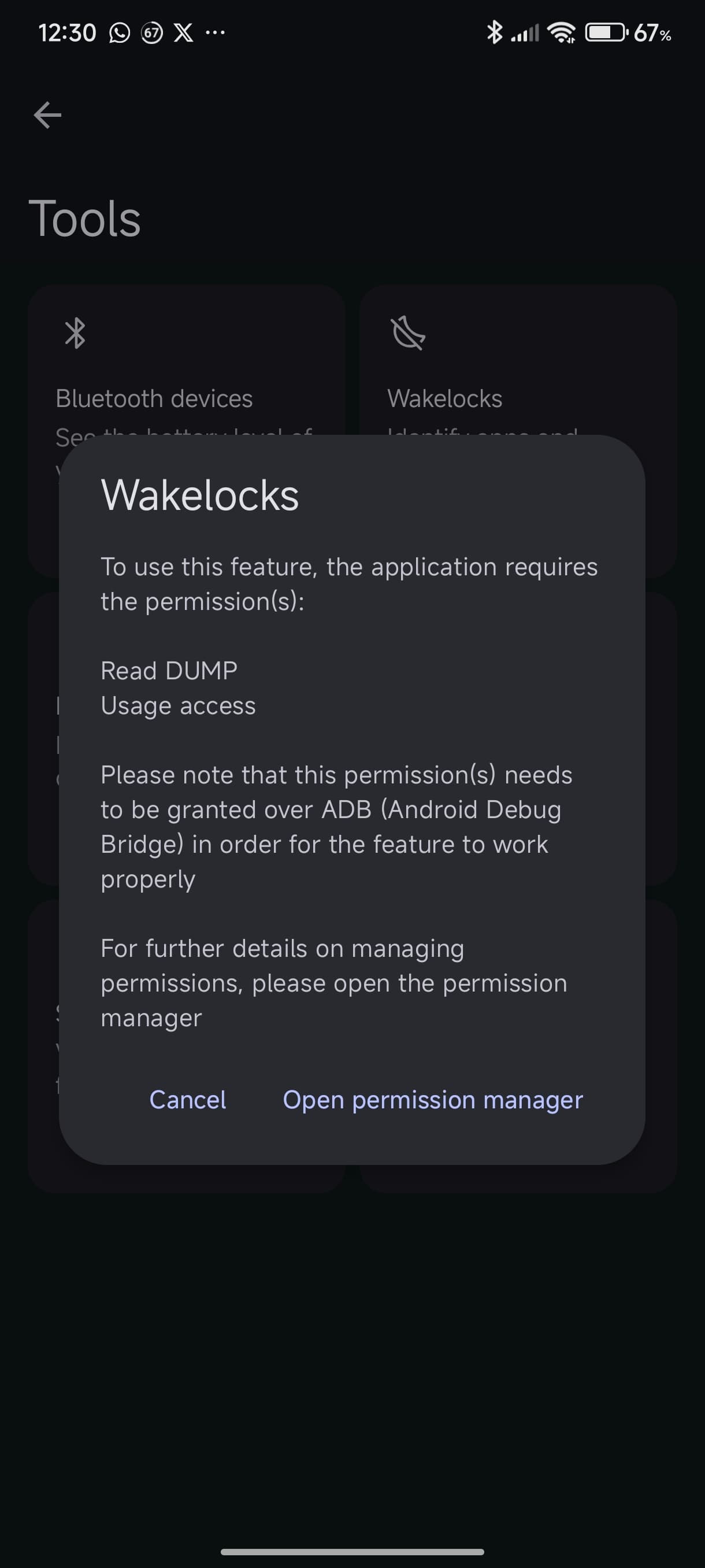
This is where most users stop—but don’t!
📌 Important:
It says Usage Access must be granted.
But here’s the catch: It needs to be granted via ADB, not through the usual settings UI.
Step 4: Granting Usage Access via ADB
To get wakelocks tracking to work properly, you must run this ADB command:
adb shell pm grant com.paget96.batteryguru android.permission.PACKAGE_USAGE_STATS
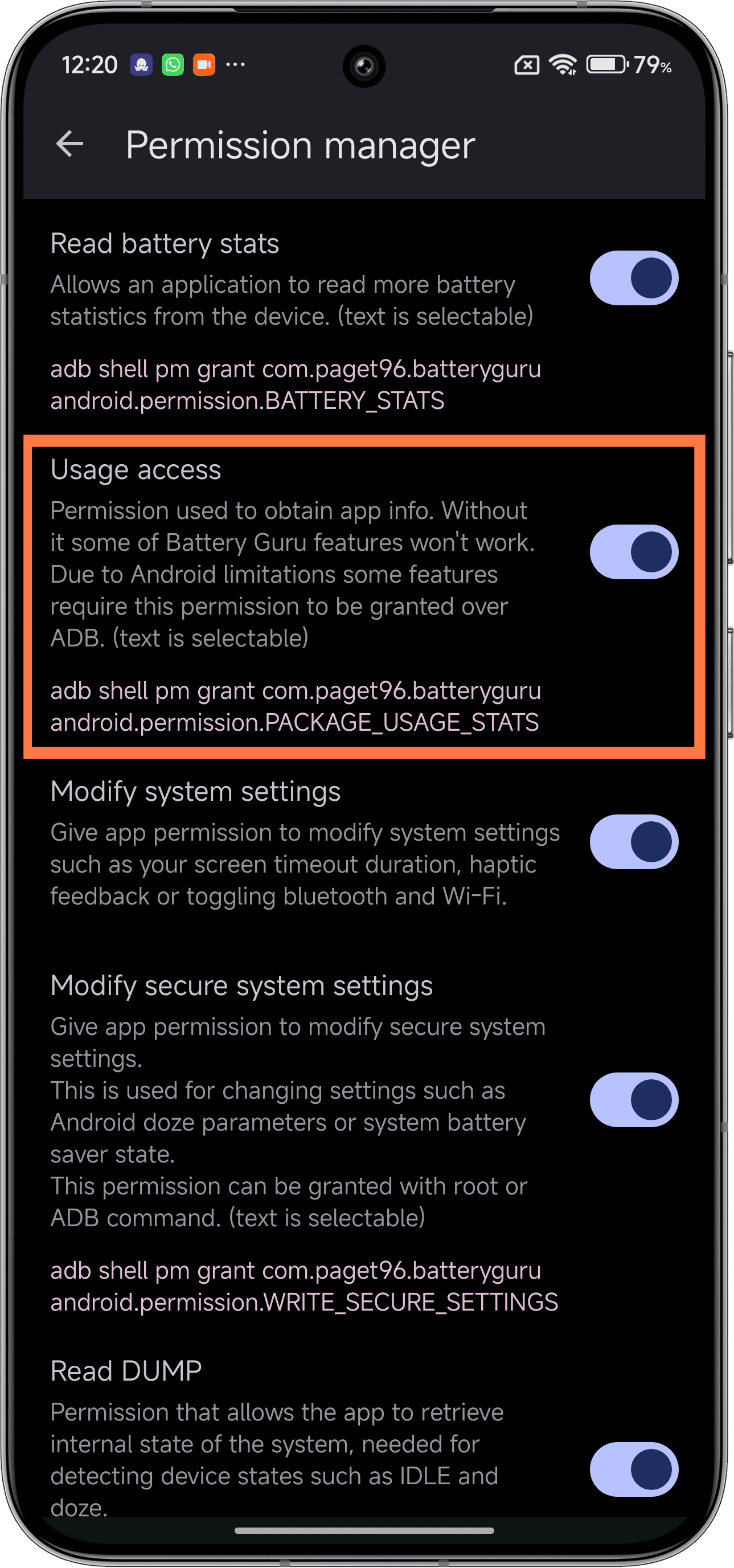
You can follow our full guide here:
👉 How to Grant ADB Permissions for Battery Guru
🛠 Why ADB Permissions Are Necessary#
Google restricts background access to wakelock data for privacy and security. Without ADB-granted usage access, Battery Guru cannot track wakelocks, even if you’ve enabled Usage Access through settings.
The app is transparent about this, showing you the exact permissions needed in the Wakelocks dialog. granted, you'll see:
Which apps are holding wakelocks
Duration of each wakelock
App package and process info
This makes it much easier to diagnose rogue apps draining your battery.
🚀 Why This Matters Now#
With Android focusing more on aggressive background task management (especially with changes in Android 14 and above), users want more visibility into what's draining their phones. The wakelock tracking feature in Battery Guru is more important than ever—especially with OEMs like Xiaomi adjusting how background processes work.
If people search about battery drains due to wakelocks, they’ll land here—so share this with friends who are constantly complaining about standby drain!
Final Thoughts#
Wakelocks aren’t inherently bad—but they can be when used irresponsibly. Thankfully, tools like Battery Guru give you visibility into these hidden CPU vampires. Just remember, granting permissions the right way (ADB) is essential to make it all work.
Let your battery rest, and hunt those wakelocks down. 🔦🔋