YouTube Music Desktop App: Your Music, Your Way, On Your Computer!
Do you love YouTube Music but wish it felt more like a proper app on your computer, instead of just another tab in your web browser? Well, good news! There's an unofficial, but super popular, YouTube Music Desktop App that gives you all the features of YouTube Music in a neat, standalone program. Think of it as giving YouTube Music its own special home on your desktop, making it easier to use and enjoy, without getting lost among your other browser tabs.
 Nissi VardhanContent writer 4 min read
On this page
Getting to Know the YouTube Music Desktop App#
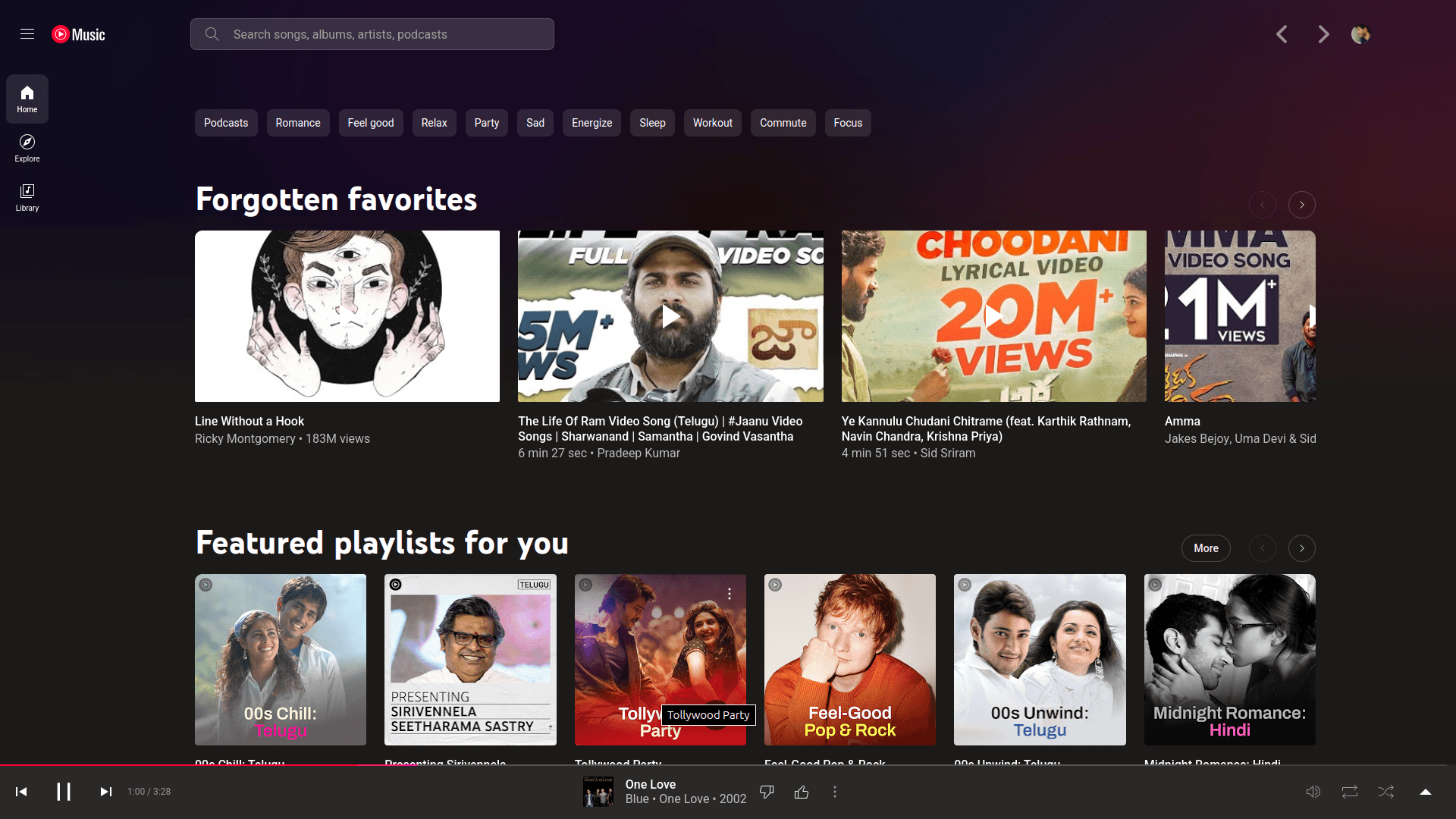
This app isn't officially made by Google (who makes YouTube Music), but it's built by clever developers who wanted a better experience. It basically takes the YouTube Music website and wraps it in a desktop program, adding some cool extra features along the way.
How It Works (The Simple Version)#
- It's Just Like the Website, But Better: The app looks and feels exactly like the YouTube Music website you already know. All your playlists, recommendations, and saved songs are there.
- A Standalone Program: Instead of opening it in Chrome or Firefox, it opens as its own app, like Spotify or Apple Music. This makes it feel more "native" to your computer.
- Built by the Community: It's an open-source project, meaning many people contribute to making it better. This helps it get new features and fixes quickly.
Cool Stuff This App Can Do#
This isn't just a simple wrapper; it comes with some neat tricks:
- Media Keys Control: Use your keyboard's media keys (play, pause, skip) to control your music, even when the app isn't the main window you're looking at. Super convenient!
- Desktop Notifications: Get pop-up notifications when a new song starts playing. You'll always know what's on, even if you're working on something else.
- "System Tray" Control: You can minimize the app to your computer's "system tray" (that little area near the clock). This keeps it running quietly in the background, ready when you need it, without cluttering your taskbar.
- Custom Themes & Plugins: Want to change how the app looks? You can! It supports custom themes. Plus, there are plugins to add even more features, like richer sound, last.fm integration (to track your listening), or ad-blocking (though be aware that using ad-blockers can affect creator support).
- Lyrics on Screen: See the lyrics to your songs right there in the app. Perfect for singalongs!
- Adjust Playback Speed: Speed up or slow down songs, which can be useful for podcasts or learning.
- Cross-Platform: Works on Windows, Mac, and Linux computers! So, no matter what computer you have, you can use it.
- Picture-in-Picture (Mini-Player): Watch music videos in a small, floating window while you do other things.
- Sleep Timer: Set the app to automatically stop playing music after a certain time, great for falling asleep to tunes.
Why You'd Want to Use It#
- Dedicated Music Experience: It feels like a proper music player, not just another website.
- Better Multitasking: With media key support and system tray minimizing, it's easier to listen to music while you work or browse.
- Personalization: Custom themes and plugins let you tailor the experience to your liking.
- Convenience: All the little features like desktop notifications and playback speed control add up to a much smoother listening experience.
- Privacy Mode: There's even a "privacy mode" that stops your listening from affecting your YouTube recommendations, if you want to listen to something "off the record."
Is It Safe? A Few Things to Keep in Mind#
Since this app isn't official, it's natural to have questions about safety.
- Open Source: Being "open source" is a good sign. It means many developers can look at the code, making it less likely for hidden bad stuff to be there.
- Download from Official Source: Always download the app only from its official GitHub page (the link you provided!). Don't download it from random websites, as they might contain modified or harmful versions.
- Login Security: The app essentially loads the YouTube Music website, so when you log in, you're logging into Google's official system. Your login details aren't directly handled by the app itself.
How to Get It (General Steps)#
It's usually quite simple to get this app running on your computer:
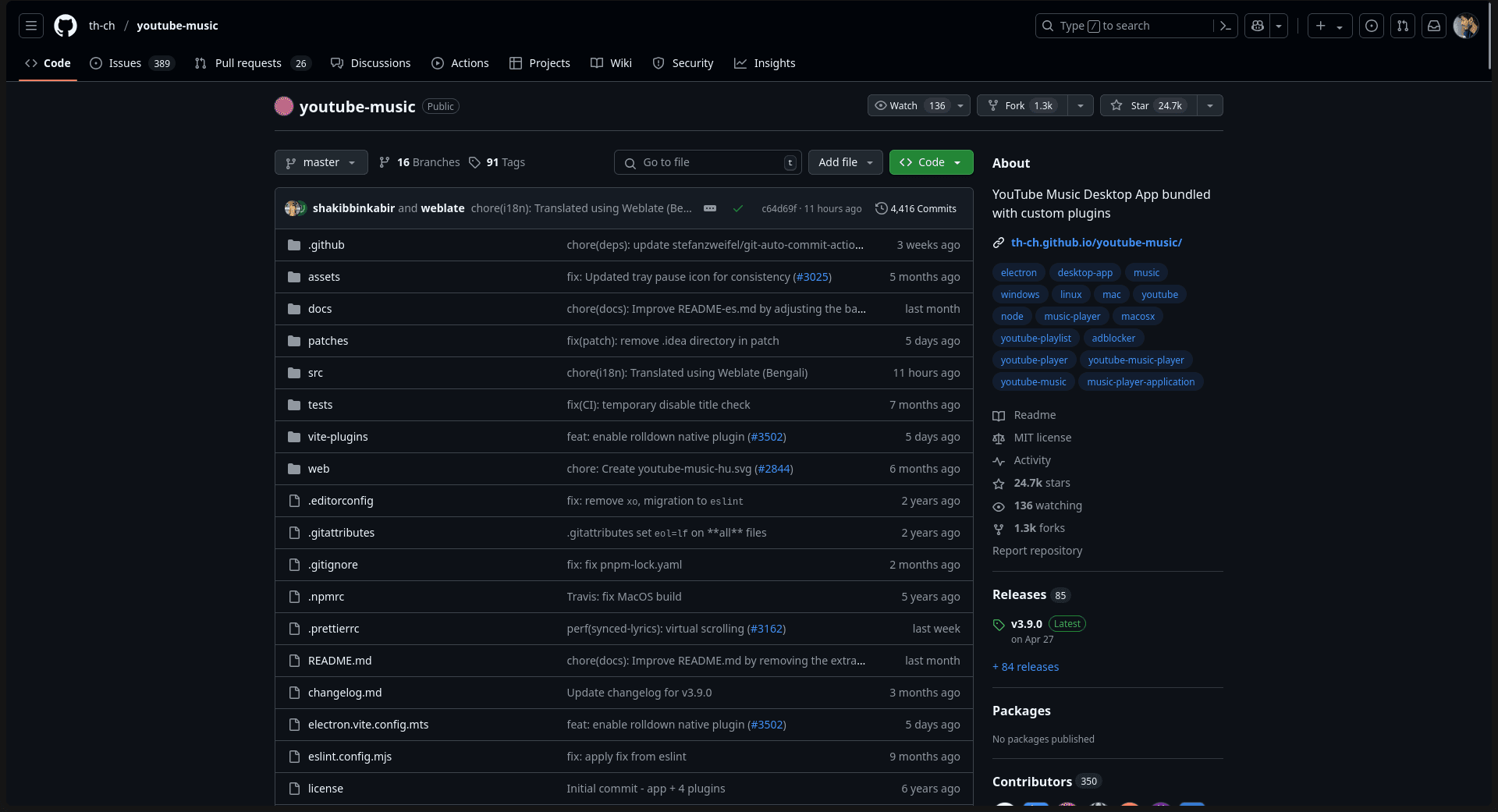
- Go to the Official GitHub Page: Click on the link you provided: https://github.com/th-ch/youtube-music.
- Find the "Releases" Section: Look for a section called "Releases" (it usually has a tag like "Latest release"). This is where you'll find the actual download files.
- Download for Your Computer: Download the version that matches your computer's operating system (Windows, macOS, or Linux). For Windows, it might be an .exe file; for Mac, a .dmg file.
- Install the App: Run the downloaded file and follow the on-screen instructions to install it, just like any other program.
- Launch and Log In: Once installed, open the app, and you'll see the familiar YouTube Music login screen. Sign in with your Google account, and you're ready to go!
The Community Making It Happen#
The YouTube Music Desktop App is a fantastic example of a community project. Developers passionate about a better YouTube Music experience keep it updated, add new features, and fix issues. This means the app is constantly evolving to meet user needs, offering a richer listening experience than just using the website in a browser.
So, if you're looking for a more integrated and feature-rich way to enjoy your YouTube Music collection on your computer, this desktop app is definitely worth checking out!