Grant permissions through Shizuku and aShell applications.
This guide will help you enable additional permissions on BATTERY GURU using two applications: Shizuku and aShell.


On this page
Shizuku App: A Quick Overview#
Overview#
- Direct System API Access: Lets apps use system APIs directly, avoiding the need for a root shell.
- Enhanced Speed & Efficiency: Offers a faster, streamlined method over traditional shell commands.
Key Features#
- ADB Support: Expands app compatibility by allowing operations with just ADB permissions.
- Developer Friendly: Comes with clear documentation, sample code, and multilingual support.
Conclusion#
Shizuku simplifies access to high-level system functions, making it a powerful tool for developers seeking efficient and secure app operations.
aShell: A Local ADB Shell for Shizuku-Powered Android Devices#

Overview#
aShell is a specialized tool that allows you to execute ADB commands directly on your Android device without needing a PC. It leverages the Shizuku framework to offer a seamless and efficient way to run system commands locally.
Key Features#
- Local ADB Execution: Run ADB commands directly on your device.
- Modern User Interface: Features a Material Design 3 themed UI with auto-dark/light support.
- Command Examples: Comes with bundled examples of common ADB commands.
- Continuous Command Support: Handles commands like logcat and top that run continuously.
- Search & Save: Allows you to search within command outputs and save them as text files.
- Bookmarking: Easily bookmark frequently used commands.
Requirements#
- Shizuku Environment: A fully functional Shizuku setup is necessary.
- Command-Line Knowledge: Basic familiarity with ADB/Linux commands is required.
Conclusion#
aShell empowers users to harness the full potential of ADB directly on their device, making it ideal for those who prefer managing system functions locally. Whether you're troubleshooting or automating tasks, aShell offers a user-friendly and powerful solution.
How to grant permissions through Shizuku and aShell applications?#
First, install both applications: aShell and Shizuku.
1. Set up Shizuku (If you are unfamiliar with Shizuku and how to use it, you can refer to the guide here).
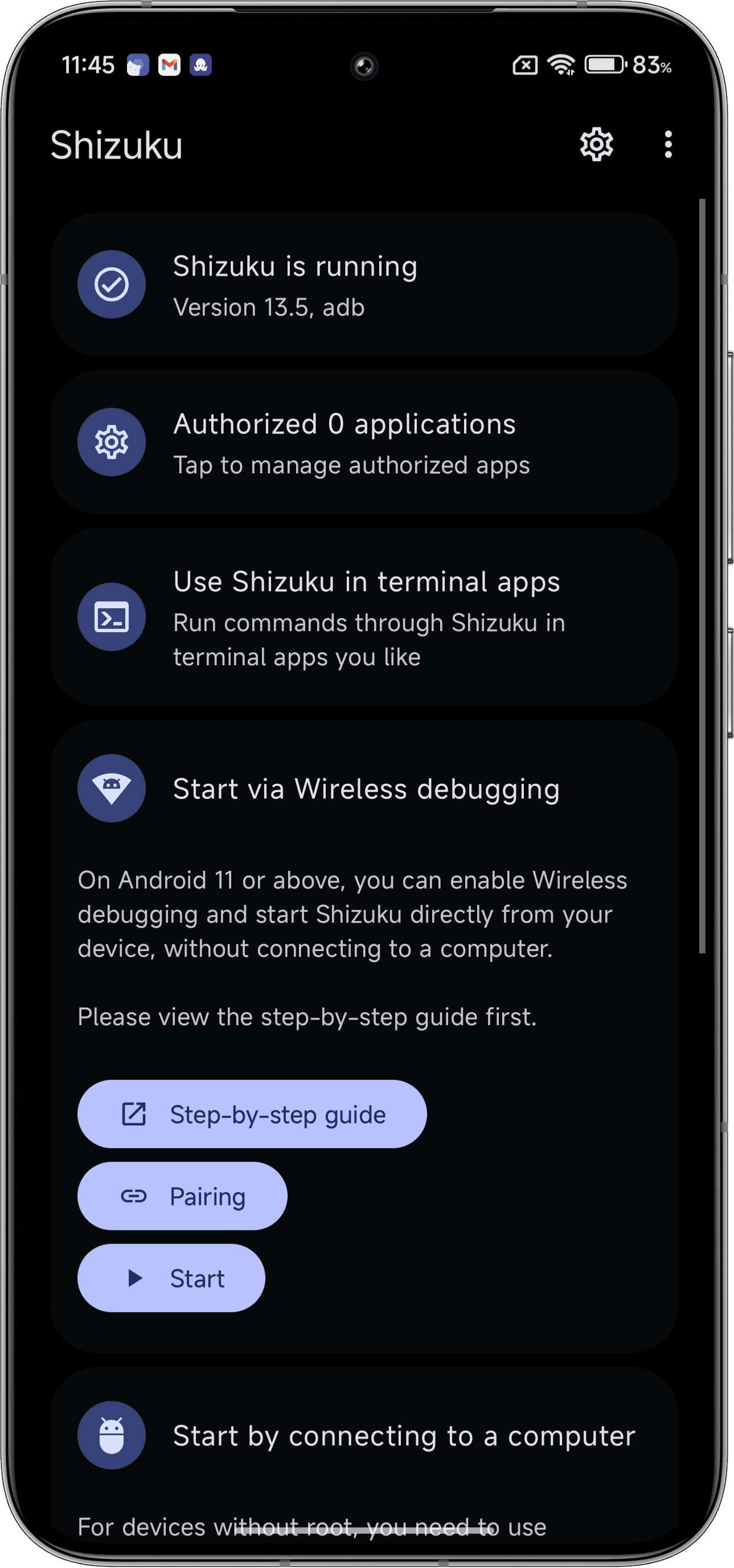
2. Open the Shizuku app and click on Tap to manage authorized apps.
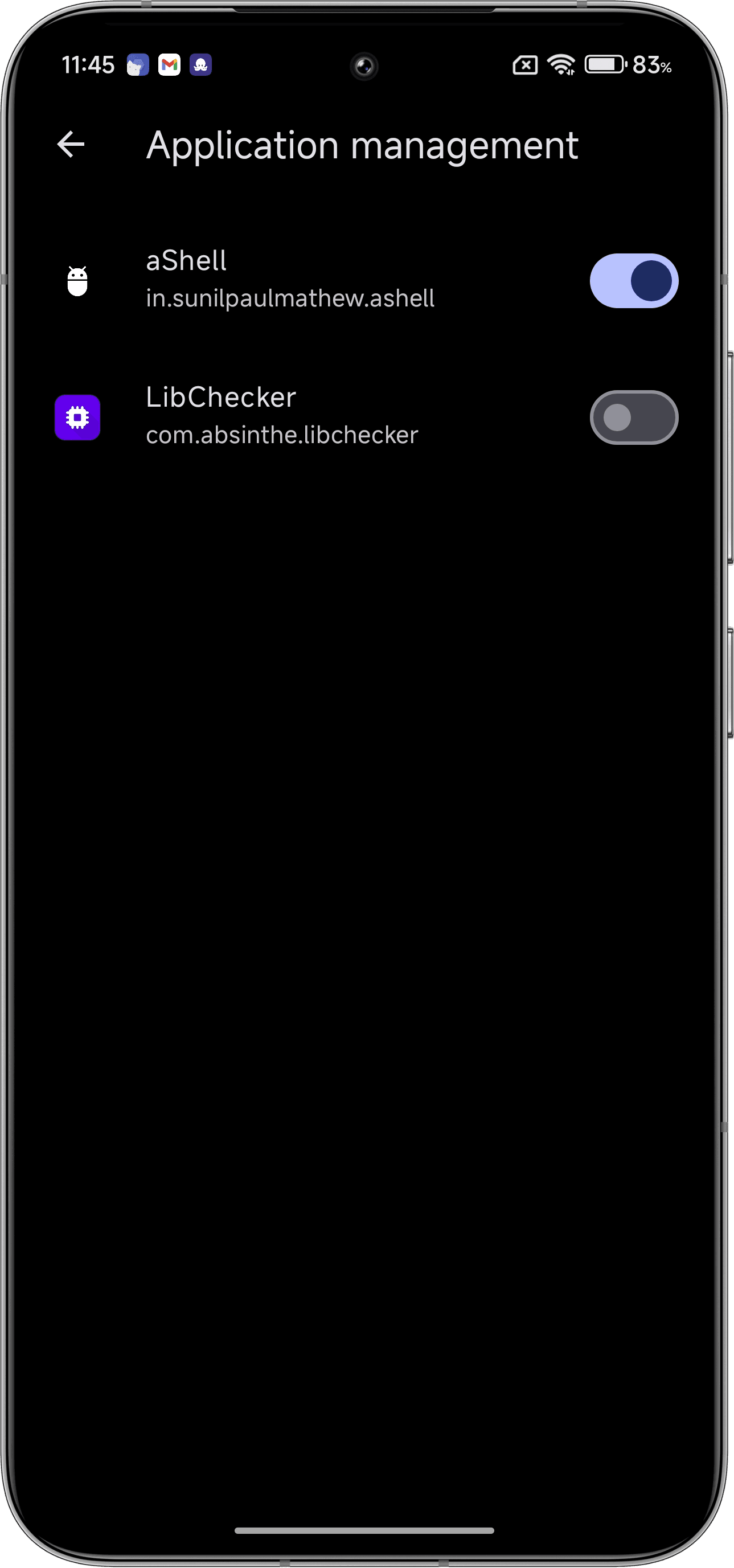
3. Enable the permission for the aShell app.
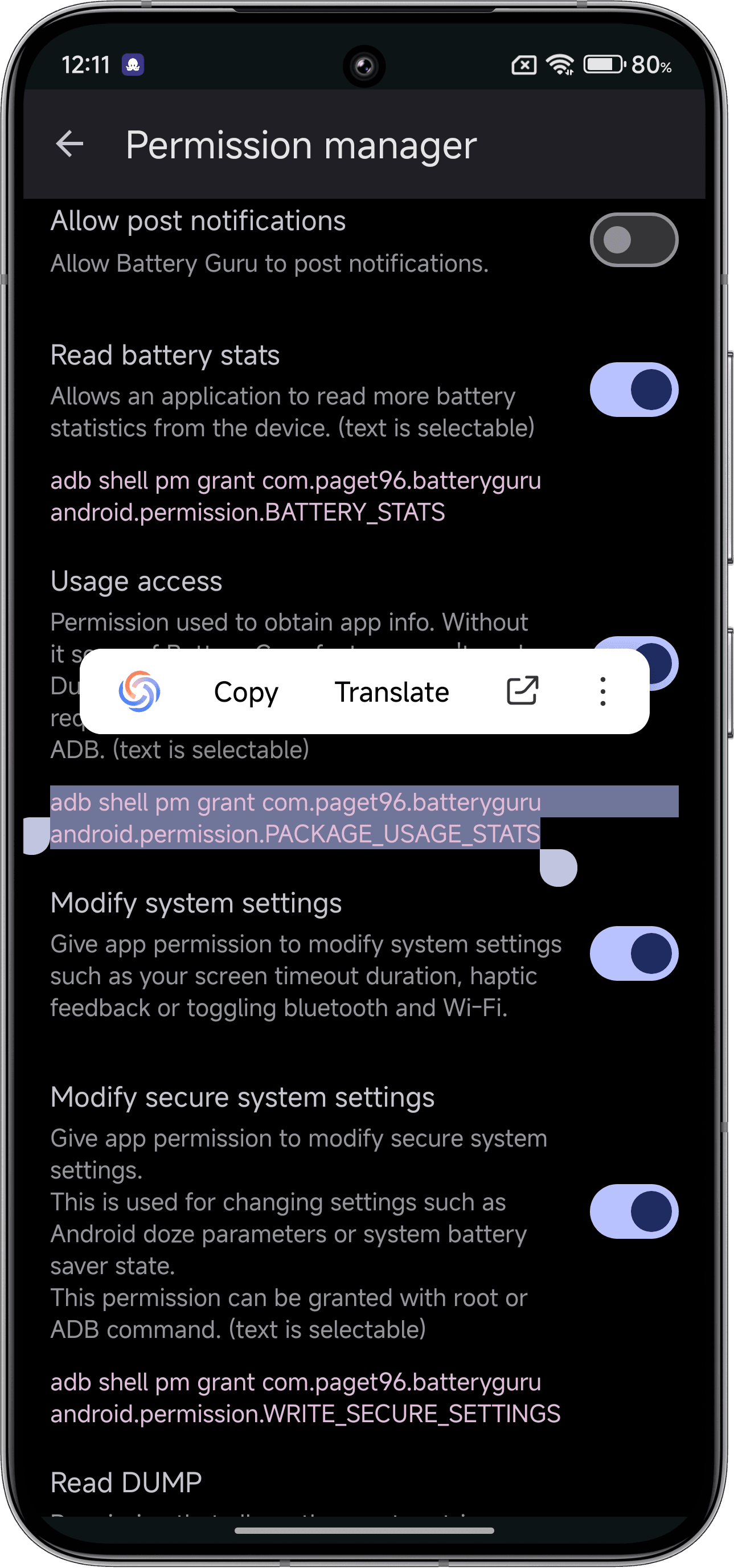
4. Open the BATTERY GURU app, copy the command, then open the aShell app, paste the command, and press Enter.
If you're someone who's lazy like me,
Here are all the permission-required links. Just copy and paste them into the aShell app, and you're good to go!
Read battery stats
adb shell pm grant com.paget96.batteryguru android.permission.BATTERY_STATS
Usage access
adb shell pm grant com.paget96.batteryguru android.permission.PACKAGE_USAGE_STATS
Modify secure system settings
adb shell pm grant com.paget96.batteryguru android.permission.WRITE_SECURE_SETTINGS
Read DUMP
adb shell pm grant com.paget96.batteryguru android.permission.DUMP
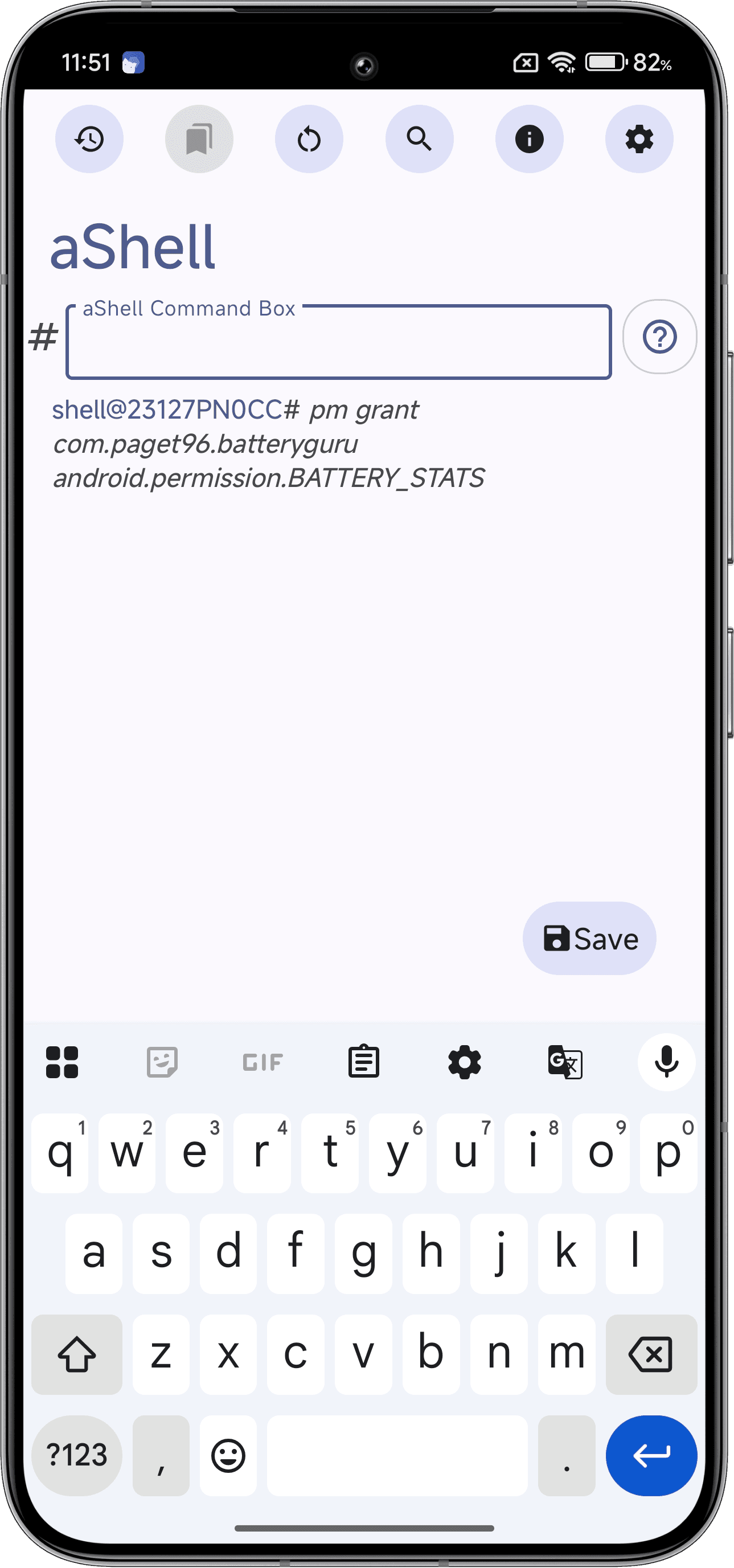
5. Done! Follow the same process for every command to grant the necessary permissions.
Download links#
I'll be providing links to download the apps from different sources, including their official websites.
aShell#
- [F-Droid]
- [IzzySoft]
- [Gitllab]
- [Google Play Store]
Shizuku#
That’s a wrap, folks! Now you know how to easily grant permissions using Shizuku and aShell apps. I hope this guide was helpful. If you have any questions, feel free to ask!
Stay tuned for more tips and tricks. See you in the next one! 🚀