How To Install Android Apps On Any Linux Distro!
Do you want to use your favourite Android applications and games on your Linux computer? If so, you've come to the correct spot because we'll introduce you to anbox and show you how to install it so you can run any Android app on your Linux Distro.
 Danijel MarkovAndroid app developer 4 min read
On this page
ANBOX#
Several macOS and Windows tools are available for running Android apps (such as Bluestacks) but this isn't available for Linux. So Linux users should try Anbox, a free and open source solution for running Android applications on Linux. It is built on the most recent version of the Android Open Source Project (AOSP) and provides a windowed Android experience.
Anbox is a container-based approach to boot a full Android system on a regular GNU/Linux system like Ubuntu. In other words: Anbox will let you run Android on your Linux system without the slowness of virtualization.Anbox runs a whole Android system in a container and provides Android applications on any GNU/Linux-based platform using Linux namespaces (user, pid, uts, net, mount, ipc).Because there is no hardware virtualization, Anbox works as well on a laptop or desktop, regardless of system specifications.
For More Information you can read the documentation from here
Steps To Install#
Currently, Anbox officially supports:
- Ubuntu 18.04 (bionic)
- Ubuntu 20.04 (focal)
However, You can install Anbox on most of the linux distros using Snap
- First You need to have snapd service installed in your system. To do so,
sudo apt install snapd
- sudo apt install snapd
sudo snap install anbox-installer --classic
or
snap install --devmode --edge anbox
NOTE: You need a kernel that's compiled with binder and ashmem support.More significantly, running Android apps on Ubuntu is likely to produce better results than other distributions. As a result, the procedures following apply to running Android apps in Anbox on Ubuntu rather than other distributions.
If you don't want to use snap, you can use the following command to install Anbox (Ubuntu Only!!)
sudo apt install anbox
- If any dependency is missing install it using terminal and then install from the command above
- Done....You have successfully installed Anbox
How To Use Anbox#
After restarting your computer, Anbox should be visible in the desktop menu. When you click it, the Anbox window will appear.
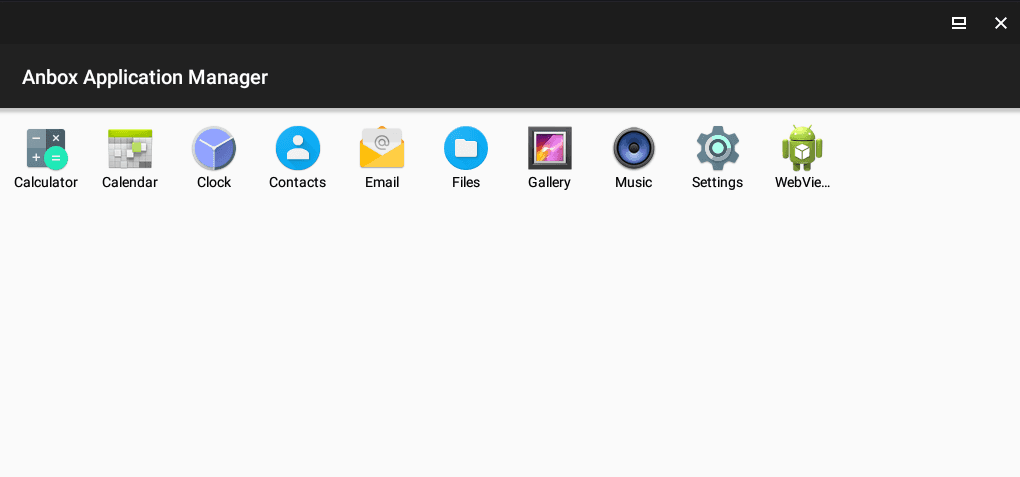
If nothing happens, or if you are stopped on the splash screen with the Starting message, cancel or wait for it to finish. Then launch a new terminal and type in
anbox session-manager
Anbox will provide a list of the basic Android applications that can be launched on Linux, such as Calendar and Email. Simply left click on these icons to open them; they will open in new windows that you may resize as needed. The WebView Shell is supplied if you require a browser.
How To Install Google Play Store Or Sideload APKs#
To add your own apps and games, all you need to do is download the appropriate APK files. And then simply install/Run it like a normal EXE or DEB file with Anbox. This will install just like any other Android app.
ADB Method#
You can also install Android apps using the following ADB command in terminal
adb install xyz.apk
The apk files you will sometimes find on the internet tend to only have arm support and will therefore not work on x86_64. You may want to install F-Droid to get applications graphically. Note that the Google Play Store will not work as is, because it relies on the proprietary Google Play Services, which are not installed.
NOTE: If you opt to sideload APKs, you'll need to enable installation from unknown sources:
- Open the Settings menu from the apps screen
- Click Security
- Enable Unknown Sources
- Click OK to accept
To install Google Play Store, there is Anbox Playstore Installer is a GitHub project that enables installing apps in Anbox as simple as it is on your phone or tablet.
- Start with opening the Terminal and enter:
sudo apt install wget curl lzip tar unzip squashfs-tools
- Next, download the Anbox Playstore script:
wget https://raw.githubusercontent.com/geeks-r-us/anbox-playstore-installer/master/install-playstore.sh
- Make it executable and run
chmod +x install-playstore.sh && ./install-playstore.sh
This will Install Google Play Store On your system
Now, set the correct permissions in Android.
- Open Settings
- Go to Apps > Google Play Services
- Tap Permissions then enable all permissions
- Repeat this for Apps > Google Play
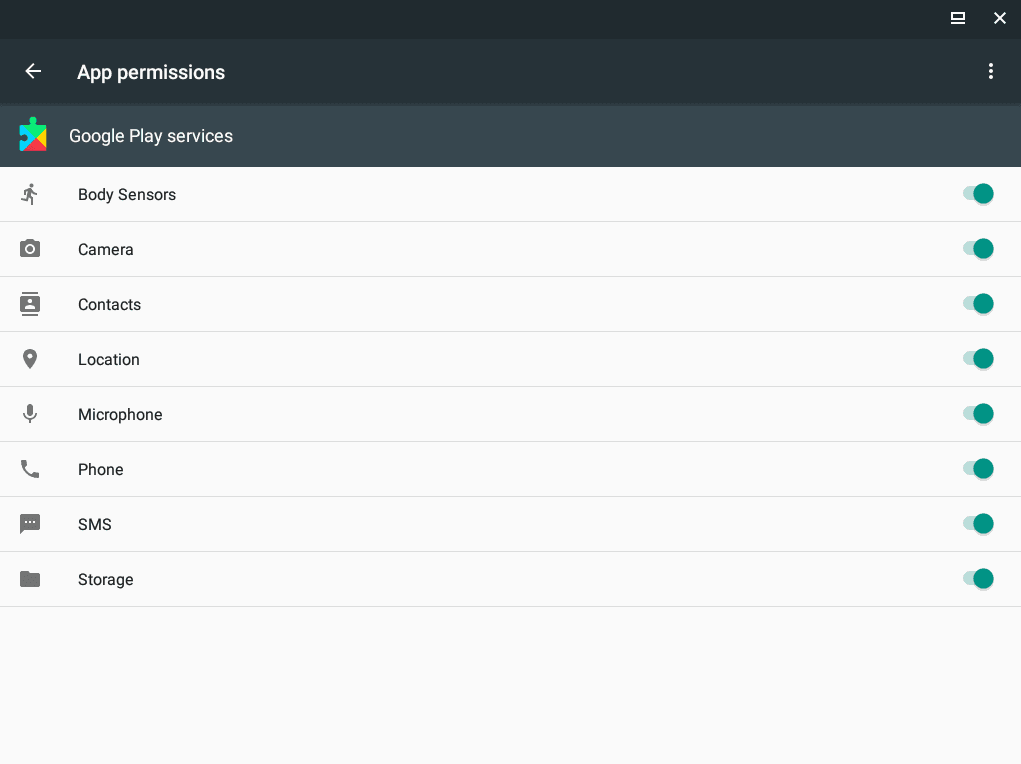
Now you can easily install any application using Play Store
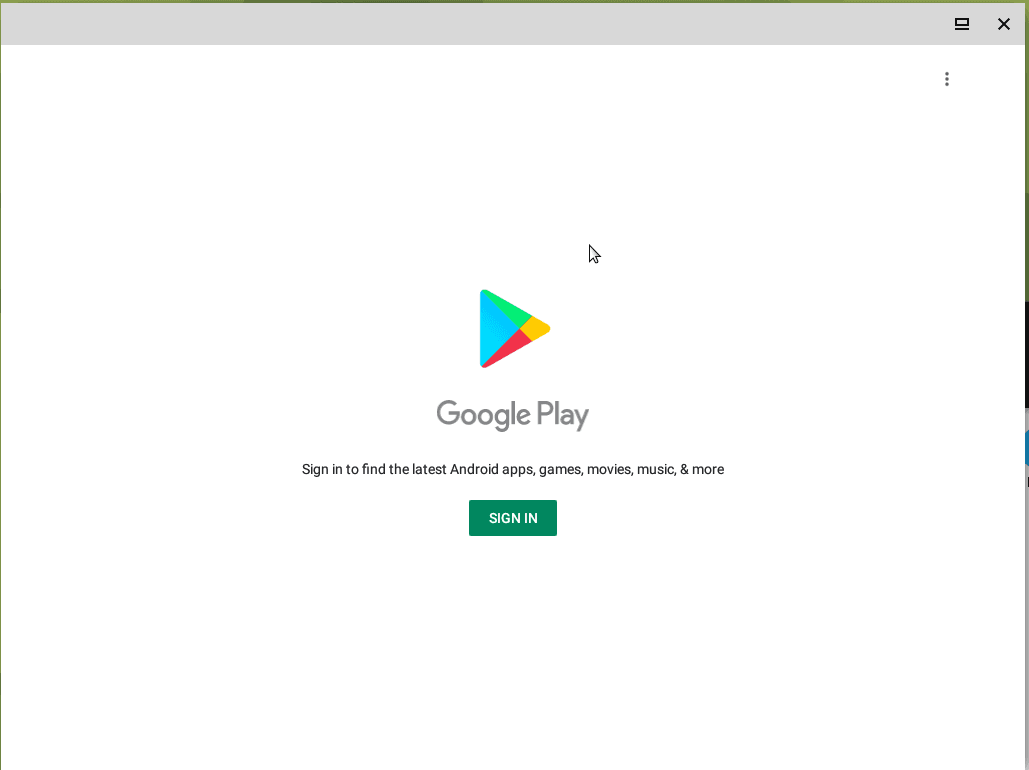
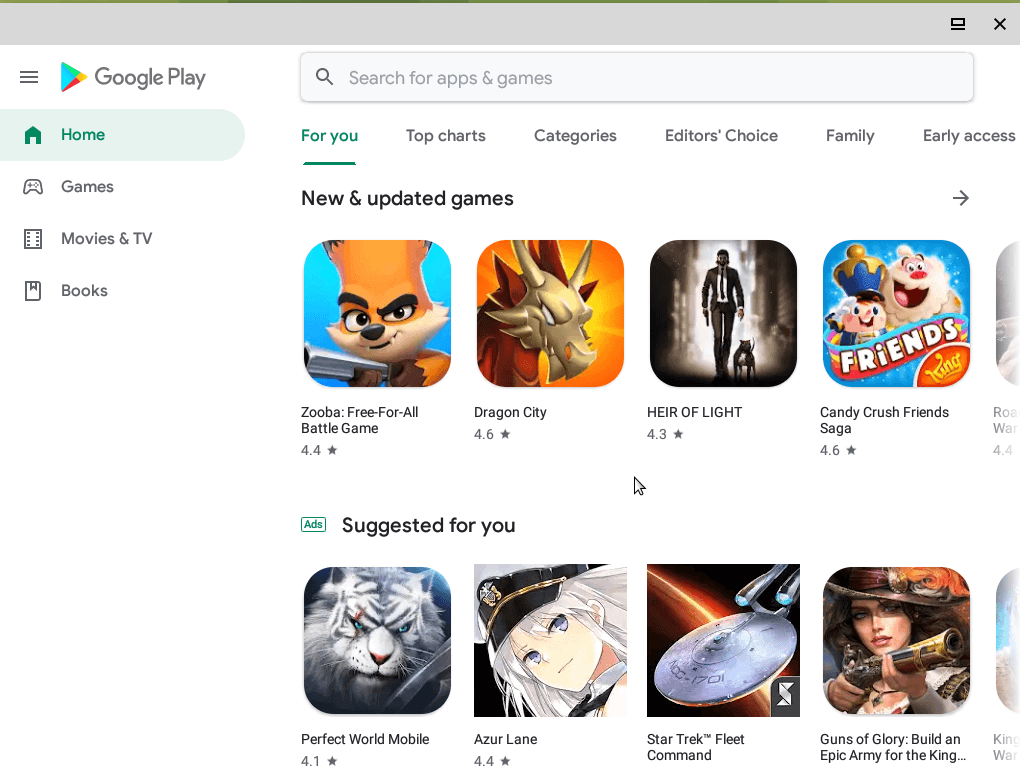
So, this is the end of our guide. Hope it helps you in running your favourite android applications on your Linux. If it does, don't mind sharing it with your friends.
Hope you have a Good day!!