Shizuku Make granting special permissions easier
Shizuku is a tool that application developers can use to easily access certain system APIs. In some cases, it serves as an alternative to root when the only reason an app requires root is to obtain ADB permissions.

On this page
- 👋 Introduction
- 🔍 What is Shizuku?
- 🔧 How Shizuku Works
- ❓ Why Shizuku?
- ✅ Easy Access to System APIs
- 🖥️ ADB Permissions Without Root
- ⚠️ A Safer Alternative to Root
- ⚙️ What Does Shizuku Do?
- 🔄 How the Shizuku Service Works
- 🚀 Advantages of Shizuku
- 📚 Learn More About Shizuku
- ⚙️ How to Install and Set Up Shizuku
- 📥 Downloading Shizuku
- 🚀 Ways to Set Up Shizuku
- 🔓 1. Root Method
- 🖥️ 2. ADB Method
- ➡️ Start Shizuku
- 🛜 Wireless debugging Method
👋 Introduction#
Back in the day, rooting your Android device allowed users to gain administrator-level rights and perform various tasks. However, root is considered old-fashioned these days, as Shizuku is an app that makes it easy to grant special permissions to other apps without rooting your device.
Earlier, to grant admin privileges to apps on Android, you needed to root your device and use superuser managers like Magisk Manager or SuperSU. This is where Shizuku comes in. Shizuku allows regular applications to directly take advantage of system APIs with ADB privileges. You may have come across apps like AppOps, SAI, and Tachiyomi, which utilize Shizuku to perform various tasks.
🔍 What is Shizuku?#
Shizuku is a tool that allows application developers to easily access certain system APIs. In some cases, it serves as an alternative to root if the only reason an app required root was to obtain ADB permissions.
🔧 How Shizuku Works#
Shizuku helps regular apps use system APIs directly with ADB or root privileges through a Java process started with app_process.
❓ Why Shizuku?#
Shizuku serves two main purposes:
✅ Easy Access to System APIs#
Shizuku provides a simple way for apps to interact with system APIs, reducing the complexity for developers.
🖥️ ADB Permissions Without Root#
Some apps only need ADB permissions rather than full root access. Shizuku makes this process seamless, eliminating unnecessary complications.
⚠️ A Safer Alternative to Root#
Rooting your device can void your warranty. If your apps require root only for ADB permissions, Shizuku is a safer and more efficient alternative.
⚙️ What Does Shizuku Do?#
The Shizuku app guides users to start a service process (Shizuku service) using either root or ADB.
🔄 How the Shizuku Service Works#
- When the app process starts, the Shizuku service sends a binder to the app process.
- The app communicates with the Shizuku service via this binder.
- The Shizuku service, in turn, interacts with the system server through the binder.
🚀 Advantages of Shizuku#
✔️ Minimal Performance Impact – Shizuku operates efficiently with minimal extra resource usage.
✔️ Seamless API Integration – Developers only need to add a small amount of code, making the experience nearly identical to direct API access.
📚 Learn More About Shizuku#
You can learn more about Shizuku here.

⚙️ How to Install and Set Up Shizuku#
📥 Downloading Shizuku#
You can download the latest version of Shizuku from:
🚀 Ways to Set Up Shizuku#
Shizuku can be set up using three different methods:
- Root Method (Easiest, starts automatically)
- ADB Method (Requires a PC connection)
- Wireless Debugging Method (For Android 11+)
🔓 1. Root Method#
This is the easiest method for setting up Shizuku.
✅ How to Start Shizuku with Root
- Open the Shizuku app.
- Press the Start button.
- If everything is set up correctly, Shizuku should start automatically.
🖥️ 2. ADB Method#
📌 What is ADB?
Android Debug Bridge (ADB) is a command-line tool that allows you to communicate with your device. It lets you:
✔️ Install and debug apps.
✔️ Access a Unix shell to run commands on your device.
🛠️ Installing ADB
- Download and install ADB & Fastboot Installer from here.
- Open the folder where ADB is installed.
- Open a terminal or command window
- Windows 10: Shift + Right Click → Select "Open PowerShell window here"
- Windows 7: Shift + Right Click → Select "Open Command Window here"
- Mac/Linux: Open Terminal
- Enter '' adb"
if success, you can see a long list of content instead of the prompt not finding adb.
NOTE:
To use adb you first need to turn on USB debugging on your device, usually by following these steps:
- Open system Settings and go to About.
- Click "Build number" quickly for several times, you can see a message similar to "You are a developer".
- At this point, you should be able to find "Developer Options" in Settings, enable "USB Debugging".
- Connect the device to the computer and type adb devices in the terminal.
- At this time, the dialog "Allow debugging" will appear on the device, check "Always allow" and confirm.
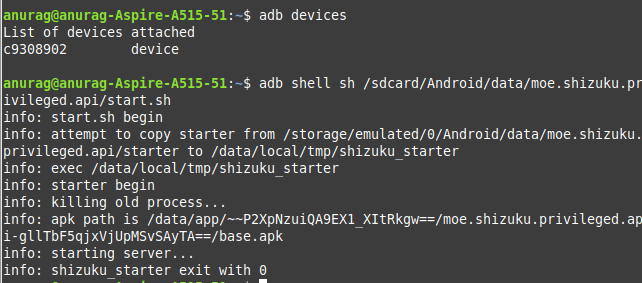
- Enter adb devices again in the terminal. If there is no problem, you will see something like the following.
The steps for enabling Developer Options on different devices may vary, please search for yourself
➡️ Start Shizuku#
- adb shell sh /sdcard/Android/data/moe.shizuku.priviledged.api/start.sh
Copy the command and paste into the terminal. If there is no problem, you will see that Shizuku has started successfully in Shizuku app
Please note:
After the device restarts, it needs to be connected to the computer again by following the same procedure again
🛜 Wireless debugging Method#
Android 11 and above support wireless debugging, so you can launch Shizuku directly on your device.
The following applies to Shizuku 12.4.0+.Enable Wireless debugging
- Enable "Developer options" and "USB Debugging"
2. Open Shizuku App
3. Click on Pairing and then Click on Developer options
4. Now Search for Wireless Debugging and Click on it
5. Click on Pair device with pairing code
6. Now enter the Wi-Fi pairing code in the shizuku's floating window and press the button next to it
7. Once code is successfully entered your device should be paired and you should see something like this.
8. Return to Shizuku and press Start
9. Now Shizuku services should be started, and you can use it with your desired apps :D
Note:
1. After the device restarts, you need to enable the "Wireless debugging" option again and restart Shizuku.
2. "Wireless debugging" cannot be enabled when there is no Wi-Fi connection (Shizuku already started is not affected).
3. Do not disable "Developer options" or "USB debugging".