How to Debloat Your Xiaomi Phone's China ROM
Xiaomi phones offer fantastic hardware at competitive prices, but if you've imported a device directly from China or flashed the China ROM for faster updates, you'll likely find it packed with pre-installed apps and services tailored for the mainland Chinese market. Many of these apps are unnecessary, consume resources, potentially raise privacy concerns for users outside China, and clutter the user experience. This process of removing unwanted pre-installed software is known as "debloating." This guide will walk you through the most common and relatively safe method to debloat your Xiaomi device running a China ROM (MIUI or HyperOS) using ADB (Android Debug Bridge), without requiring root access.


On this page
- Why Debloat the China ROM?
- Disclaimer: Proceed with Caution!
- Prerequisites
- Step-by-Step Guide: Debloating via ADB
- Step 1: Install ADB/Platform-Tools on Your Computer
- Step 2: Enable Developer Options and USB Debugging on Your Phone
- Step 3: Connect Your Phone and Authorize the Computer
- Step 4: Find App Package Names
- Common Bloatware Categories on China ROMs (Examples - Research REQUIRED)
- List of apps which can be removed safely on china rom
- Step 5: Uninstall Apps Using ADB
- Step 6: Reboot Your Phone (Recommended)
- Alternative: Using GUI Tools (Easier but relies on third-party software)
- Reinstalling an Accidentally Removed App
- Final Thoughts
Why Debloat the China ROM?#
- Improved Performance: Fewer background processes mean more available RAM and CPU power for the apps you actually use.
- Better Battery Life: Less background activity translates to reduced power consumption.
- Reduced Clutter: A cleaner app drawer and fewer intrusive notifications.
- Enhanced Privacy: Removing apps that might collect data specific to Chinese services or user habits.
- More Storage Space: Freeing up internal storage occupied by unwanted apps.
Disclaimer: Proceed with Caution!#
- Risk: While this method doesn't require root, removing the wrong app can cause system instability, break essential features, or potentially lead to bootloops (though less common with this method).
- Responsibility: You are solely responsible for any actions you take on your device. Proceed at your own risk.
- Backup: It's always recommended to back up your important data before making system-level changes.
- Research: Crucially, research any app package name before removing it. Ensure it's not critical for the phone's basic operation or features you rely on. Lists found online can be helpful starting points, but always verify for your specific device and ROM version.
Prerequisites#
- Xiaomi Phone: Running an official China ROM (MIUI or HyperOS).
- Computer: Windows, macOS, or Linux.
- USB Cable: The one that came with your phone or a reliable data cable.
- ADB and Fastboot Tools: Download the latest Platform Tools (ADB and Fastboot) from the official Android Developers website: https://developer.android.com/tools/releases/platform-tools
- USB Drivers: Ensure your computer has the necessary USB drivers for your Xiaomi phone. Often, these install automatically, or you can find them on Xiaomi's official website or general Android driver sites.
Step-by-Step Guide: Debloating via ADB#
Step 1: Install ADB/Platform-Tools on Your Computer#
- Download the Platform Tools ZIP file from the link above.
- Extract the contents to an easily accessible location on your computer (e.g., C:\platform-tools on Windows, or /Users/yourusername/platform-tools on macOS/Linux).
Step 2: Enable Developer Options and USB Debugging on Your Phone#
- Go to Settings > My device > All specs.
- Tap rapidly on the MIUI version (or OS version on HyperOS) entry about 7-10 times until you see a message saying "You are now a developer!"
- Go back to the main Settings menu.
- Find Additional settings > Developer options.
- Scroll down and enable USB debugging. You might see a warning prompt; accept it.
- You might also need to enable Install via USB and USB debugging (Security settings) if you plan on using graphical tools or encounter permission issues later. This often requires you to be signed into a Mi Account.
Step 3: Connect Your Phone and Authorize the Computer#
1. Connect your phone to your computer using the USB cable.
2. Set the USB connection mode to File Transfer (MTP), usually accessible from the notification shade.
3. On your computer, open a Command Prompt (Windows) or Terminal (macOS/Linux).
4. Navigate to the directory where you extracted Platform Tools.
- Windows:
cd C:\platform-tools(or your chosen path) - macOS/Linux:
cd /Users/yourusername/platform-tools(or your chosen path)
5. Type the command: ./adb devices (macOS/Linux) or adb devices (Windows).
6. Look at your phone screen. You should see a prompt asking "Allow USB debugging?" with your computer's RSA key fingerprint. Check the box "Always allow from this computer" and tap OK/Allow.
7. Run the adb devices command again on your computer. You should now see your device's serial number listed with "device" next to it, indicating a successful connection.
Step 4: Find App Package Names#
This is the most critical part – identifying the correct package names for the apps you want to remove. Do not guess!
- Method 1: Using an App Inspector App: Install an app like "App Inspector" or "Package Name Viewer 2.0" from the Google Play Store (if you have access) or an alternative app source. These apps list all installed applications and their corresponding package names (e.g., com.xiaomi.mipicks).
- Method 2: Using ADB: You can list all packages using ADB, but it's a long list. You can try filtering:
Open the ADB command prompt/terminal.
Type adb shell pm list packages to list everything.
To filter by a keyword (e.g., 'xiaomi'), use: adb shell pm list packages | grep 'xiaomi' (on Linux/macOS/Git Bash on Windows) or adb shell pm list packages | findstr "xiaomi" (on Windows Command Prompt). Replace 'xiaomi' with other relevant keywords like 'miui', 'analytics', 'game', 'market', etc.
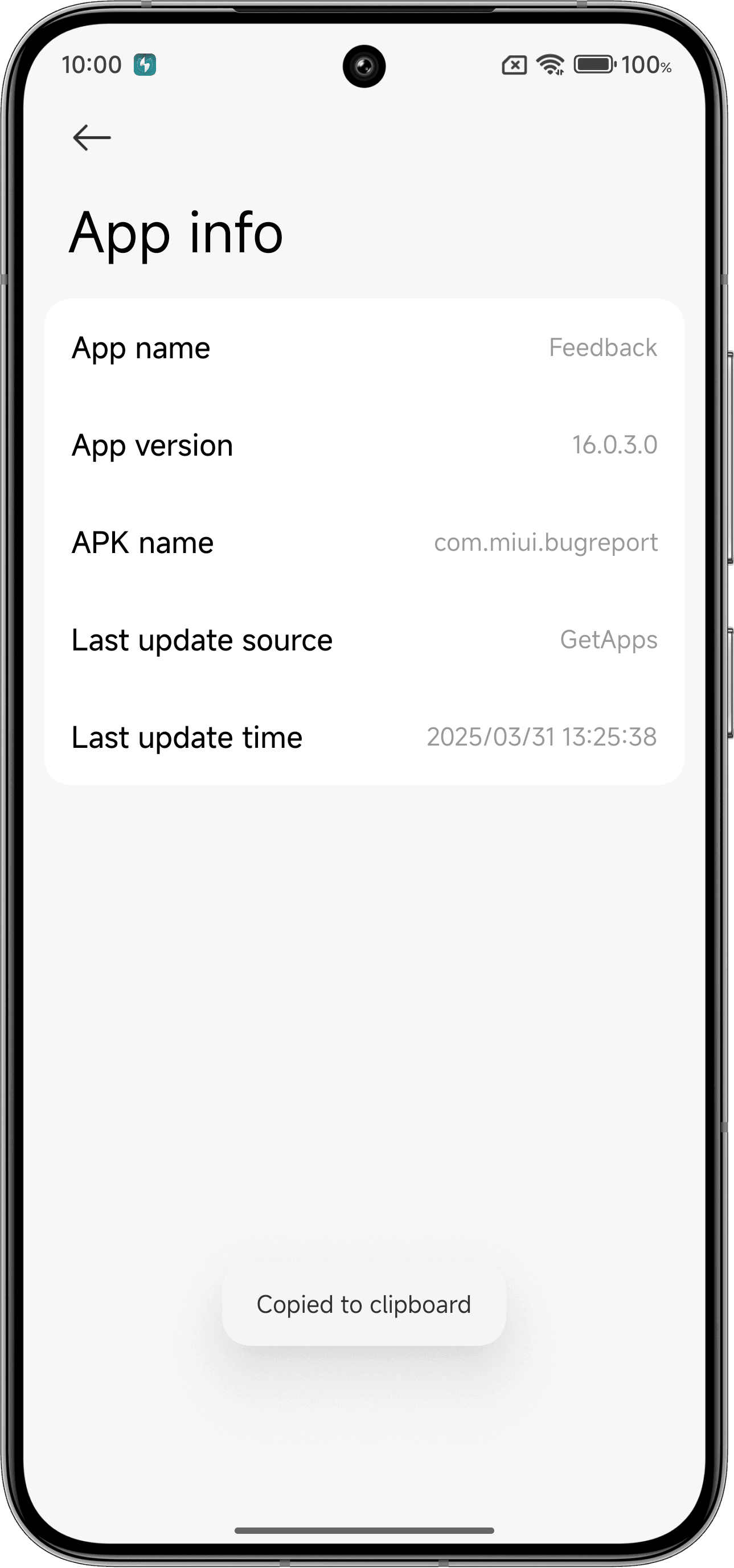
3. You can directly find the App Package names from the settings
- Go to settings
- Click on Apps
- Select the App which you want to remove and click on 3 Dots at top right
- Click on App info
- Here you will find the App Package name and click on it, It will be copied.
Common Bloatware Categories on China ROMs (Examples - Research REQUIRED):#
Xiaomi's App Store (com.xiaomi.mipicks, com.xiaomi.market)
Mi Credit, Mi Finance (com.xiaomi.payment, com.mipay.wallet.in - check region)
Built-in browser (com.android.browser) if you prefer another like Chrome.
Various analytics/feedback services (com.miui.analytics, com.miui.msa.global)
Yellow Pages (com.miui.yellowpage)
Specific Chinese services/apps (Baidu components, Sogou input - if you don't use them)
Xiaomi service frameworks you might not need (e.g., com.xiaomi.joyose - sometimes related to gaming features, remove with caution).
Digital Wellbeing (com.google.android.apps.wellbeing - if you don't use it)
List of apps which can be removed safely on china rom #
com.baidu.input_mi
com.xiaomi.macro
com.unionpay.tsmservice.mi
com.sohu.inputmethod.sogou.xiaomi
com.xiaomi.mis
com.xiaomi.gamecenter.sdk.service
com.android.browser
com.miui.carlink
com.iflytek.inputmethod.miui
com.xiaomi.digitalkey
(Updated on 07/05/2025 and will keep updating)
DO NOT REMOVE: Core system apps like com.android.settings, com.android.systemui, com.android.providers.*, com.miui.home (Launcher, unless you've installed another), com.android.contacts, com.android.phone, Security app (com.miui.securitycenter - handles many permissions/features), Camera, etc. Removing these will likely break your phone.
Step 5: Uninstall Apps Using ADB#
Once you have identified a package name you are sure you want to remove:
Use the following command format in your ADB terminal/command prompt:
adb shell pm uninstall -k --user 0 <package_name>
Replace <package_name> with the actual package name (e.g., adb shell pm uninstall -k --user 0 com.xiaomi.mipicks).
Explanation:
- adb shell: Opens a shell on your device.
- pm uninstall: The command to uninstall a package.
- -k: Keeps the data and cache directories for the app (optional, but can sometimes help avoid issues if you need to reinstall).
- --user 0: Specifies uninstalling the app only for the current user (user 0 is the default/primary user). This is the key part that allows removal without root access. The app isn't truly deleted from the system partition, just made unavailable for the current user.
- <package_name>: The target app package.
Press Enter. If successful, you should see a "Success" message.
Repeat this command for each app you want to remove. Take your time and double-check each package name.
Step 6: Reboot Your Phone (Recommended)#
After uninstalling the desired apps, it's a good idea to reboot your phone:
adb reboot
Alternative: Using GUI Tools (Easier but relies on third-party software)#
Tools like "Xiaomi ADB/Fastboot Tools" (developed by Szaki on GitHub/XDA) provide a graphical interface for many ADB actions, including debloating.
- Download the tool (usually a .jar file, requires Java Runtime Environment on your PC).
- Ensure ADB is working (Steps 1-3 above).
- Run the tool. It should detect your connected device.
- Navigate to the "Debloater" or "Uninstaller" section.
- It will list apps, often categorizing them or indicating potential safety levels for removal.
- Select the apps you want to remove and use the tool's uninstall button. Still exercise caution and research apps before removing them, even with the tool's suggestions
Reinstalling an Accidentally Removed App#
If you removed an app using the --user 0 method and realize you need it back, you can often reinstall it using ADB without needing the APK:
adb shell cmd package install-existing <package_name>
Replace <package_name> with the package you want to restore.
Final Thoughts#
Debloating your Xiaomi's China ROM can significantly improve your user experience outside of mainland China. By using ADB, you can achieve this without the complexities and risks of rooting. Remember the golden rules: back up your data, research every package name before removing it, and proceed cautiously. Enjoy your cleaner, potentially faster Xiaomi device!